
Alerts and forecasts #
On this page
The proxy can warn you before a budget runs out, and estimate when it will at the rate you have been using it. Both read the usage log on your own disk. Nothing here changes a request: an alert only warns, and a forecast is an estimate.
If you have not set a budget, there is nothing to do and nothing changes: no alerts, no banners, no messages.
In plain words #
An alert is a warning: "this budget is 80% used", "a quarter of the last hour's requests failed". A forecast is the proxy's estimate of when a budget runs out at the rate you have been using it. Neither stops anything; a budget is what stops spending.
On the setup page they live in two places:
- Costs & budgets (in the Watch group) shows what is happening: the alerts in force and the last seven days', the forecast for each budget, and Forecast provider quotas, which asks each signed-in provider for its allowance. A link there, Monitoring, Alerts, leads to the rules.
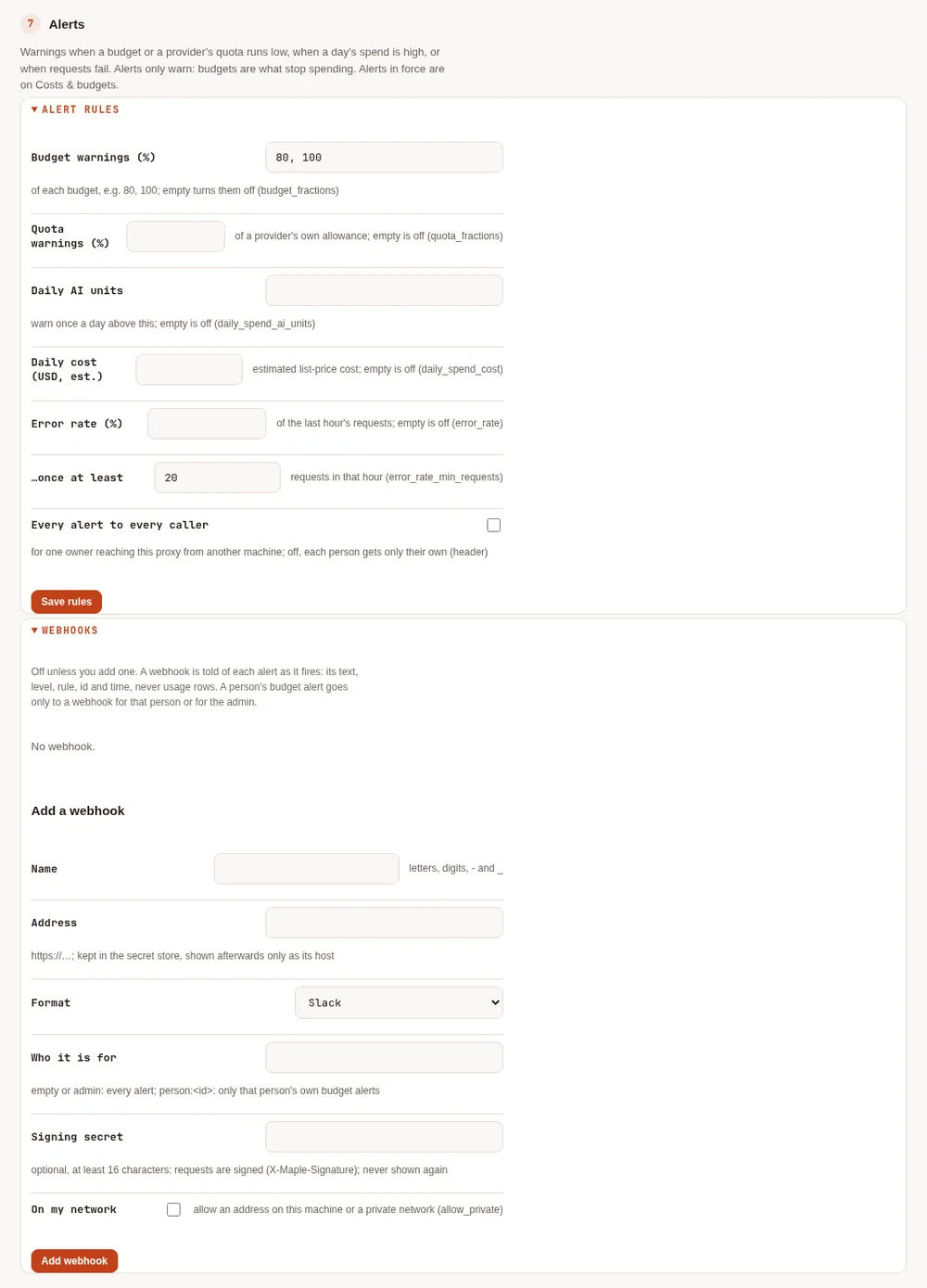
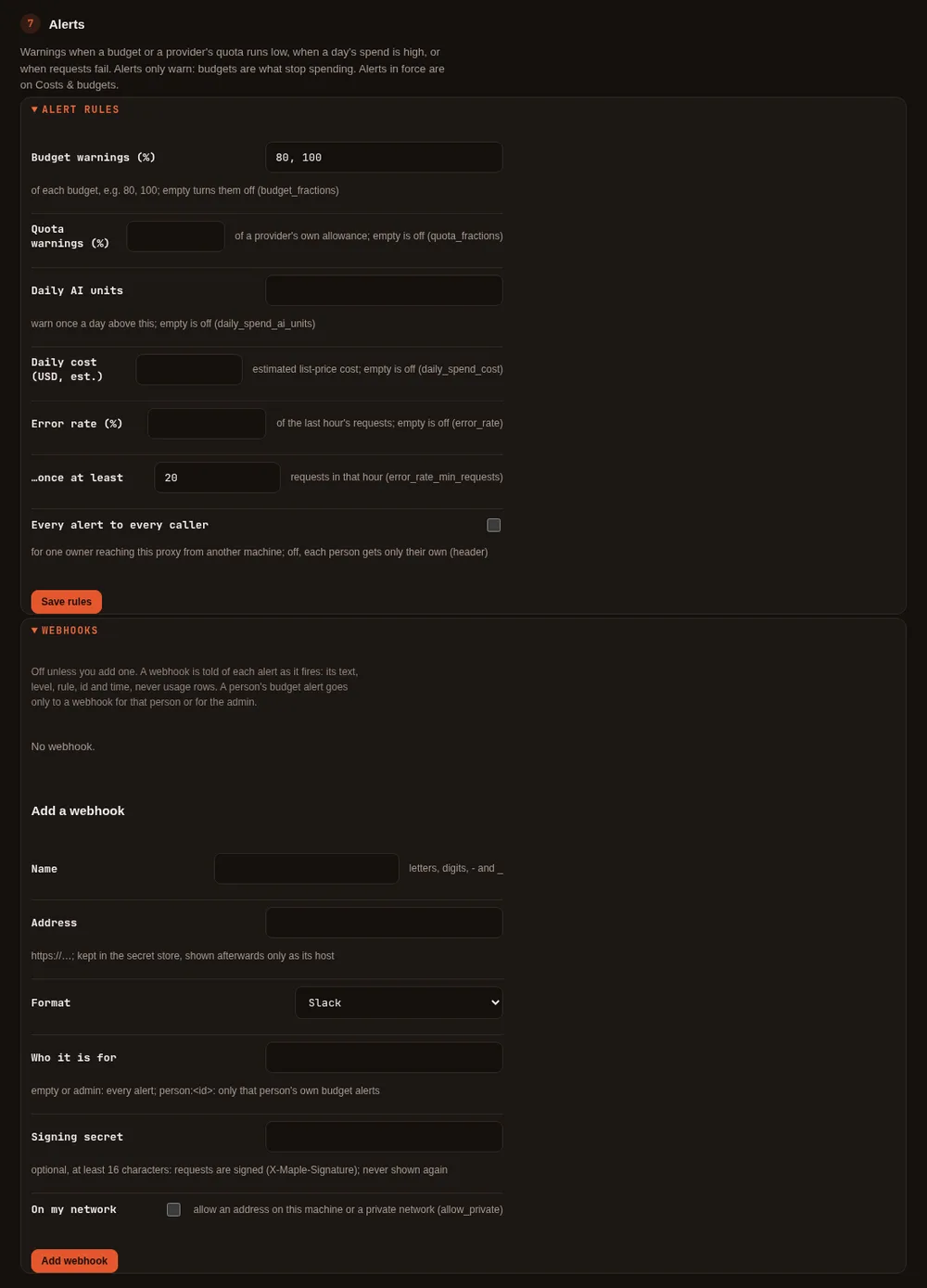
- Monitoring (in the Configure group), step 7 Alerts, is where you change them. Alert rules holds the
levels and thresholds; press Save rules, which writes only the
alerts.*keys ofconfig.yaml. Webhooks sends each alert to Slack, Microsoft Teams or any address. The Monitoring tab appears once something on it is set up; before that, open Set up more and choose Monitoring and alert webhooks.
If you set a budget and nothing else, you already get alerts at 80% and 100% of it. A monthly dollar budget warns the same way, estimated.
What fires by default #
For each budget you set (budgets: in config.yaml, or on the setup page), the proxy warns
twice a day at most: once when that provider has used 80% of the day's budget, and once at 100%. Days are UTC days,
the same days the budget counts.
A monthly dollar budget warns the same way at 80% and 100% of its month, with "estimated" and the reset date in the message, and its alerts last until the reset day rather than midnight. People's and teams' dollar caps warn like their AI-unit budgets.
Each alert fires once per budget and level and day. It is written to the events log (alert.fired, and
alert.resolved when it ends: at the end of its day, or sooner if you raise the budget), and sent to clients in the
X-Maple-Alert response header while it is in force. A restart of the proxy does not fire it again.
To turn budget alerts off, keep your budgets and set budget_fractions to an empty list:
alerts:
  budget_fractions: []
Set the rules on the setup page #
Monitoring, step 7 Alerts, then Alert rules. Each field is one key; an empty field turns it off:
| Field | Key |
|---|---|
| Budget warnings (%) | budget_fractions, as percentages: 80, 100. Empty turns budget alerts off |
| Quota warnings (%) | quota_fractions |
| Daily AI units | daily_spend_ai_units |
| Daily cost (USD, est.) | daily_spend_cost |
| Error rate (%) | error_rate |
| ...once at least | error_rate_min_requests |
| Every alert to every caller | header: all (below) |
Save rules writes these alerts.* keys and nothing else; they apply from the next request.
Other rules #
All off unless you set them, on the page or in config.yaml:
alerts:
  budget_fractions: [0.5, 0.8, 1]  # warn at half, 80% and all of each budget
  quota_fractions: [0.9]           # 90% of a provider's own quota, as the provider reports it
  daily_spend_ai_units: 50         # today's AI units across every provider
  daily_spend_cost: 20             # today's estimated list-price cost, in USD
  error_rate: 0.25                 # a quarter of the last hour's requests failed...
error_rate_min_requests: 20 # ...once the hour holds at least 20- A provider's quota is what the provider says about your account (for example a monthly allowance of premium
requests). Each level fires once per reset period. With
quota_fractionsset, the proxy asks the provider about the account once a minute, the same question the setup page's account card asks. - Daily spend counts every provider together. The cost is an estimate at list prices, for providers set up to give one; it is not a bill.
- The error rate leaves out requests a client cancelled and requests a budget refused. It fires at most once per UTC hour.
Every key is listed in Proxy settings.
Where you see them #
- In Maple Harness: one warning line in the conversation, the first time an alert comes back from the proxy. It is shown once, never added to what the model is sent, and only appears when an alert has fired.
- On your phone or desktop: if you have notifications set up, an alert is sent once, with
the project's name. Leave
alertout ofnotifications.eventsto stop them. - On the setup page: the Alerts card on Costs & budgets lists the alerts in force and the last seven days', with the budget and quota forecasts.
- In a terminal:
maple-proxy usage alerts                    # the last 7 days
maple-proxy usage alerts --since 2026-10-01 --format json
Other tools receive the X-Maple-Alert header too; a tool that does not know it ignores it.
Who gets which alert #
On your own machine, without a token, you get every alert, as before. With people set up, a person
using their own token gets only the alerts about their own budget (at the same levels, budget_fractions, for
their daily and monthly limits), with their own figures and nobody else's; never a provider's budget, quota,
spend or error alert. A token tied to nobody, and a request another proxy forwarded, get none in the header (the
alerts are still on the setup page and in maple-proxy usage alerts).
If you are the only one using your proxy and your tools use a token (from this machine or another), set header: all (the
setup page's Alert rules: Every alert to every caller) to get every alert there too:
alerts:
  header: all
Send alerts to Slack, Teams or a webhook #
Off unless you add one. A webhook is told of each alert as it fires (not when it ends), once. It is sent the
alert's text, level, rule, id and time, and nothing else: never your requests, prompts or usage rows. Who gets what
follows the same rules as the header: a webhook for the admin (the default) gets every alert; a webhook for one
person (person:<id>) gets only that person's own budget alerts.
On the setup page: Monitoring, step 7 Alerts, then Webhooks (they used to be under the Alerts card on
Costs & budgets, which now links here). Under Add a webhook, give it a name, paste the address, pick the format
(Slack, Microsoft Teams (workflow) or JSON), say who it is for (empty or admin: every alert; person:<id>: only
that person's own budget alerts), optionally a signing secret of at least 16 characters, tick On my network for
an address on this machine or a private network (allow_private), and press Add webhook. Use Test to send it
a test message, and Remove to delete it with its address and signing secret. The address is kept in the secret
store; afterwards the page shows only its scheme and host (so a service that puts its secret in the host name is
still shown in full there), and never the signing secret.
In a terminal: the address is read from standard input (not shown as you type), so it never lands in your shell history:
maple-proxy alerts webhook add team-chat --format slack          # then paste the address
maple-proxy alerts webhook add ops --format json --sign           # the address, then a signing secret
maple-proxy alerts webhook list
maple-proxy alerts webhook test team-chat
maple-proxy alerts webhook rm team-chat
Slack #
Create an incoming webhook for the channel (an address starting
https://hooks.slack.com/services/) and add it with --format slack. The message is one line, for example:
Maple warning: openai has used 80% of today's budget (80 of 100 requests); it resets at 00:00 UTC (budget.80)
Microsoft Teams #
In the channel, add a Workflows webhook ("Post to a channel when a webhook request is received") and add the
address it gives you with --format teams. Maple sends an Adaptive Card with the same line, and the alert's id and
time beneath it.
Any other endpoint (JSON) #
With --format json (the default) the body is:
{"id": "budget.80@budget:provider:openai@2026-10-10", "level": "warn", "rule": "budget.80",
 "text": "openai has used 80% of today's budget (80 of 100 requests); it resets at 00:00 UTC",
 "time": "2026-10-10T09:30:00Z"}
A test message has "rule": "test" and "test": true.
In config.yaml #
The page and the CLI write this for you; the address and the secret stay in the secret store. url is always a
reference: an address written here is refused.
alerts:
  webhooks:
    - id: team-chat
      url: ${secret:alerts/webhook/team-chat/url}
      format: slack
    - id: alice
      url: ${env:MAPLE_WEBHOOK_ALICE}        # or from the environment (a name starting MAPLE_WEBHOOK_)
      format: json
      audience: person:alice
      secret_ref: ${env:MAPLE_WEBHOOK_ALICE_SIGNING}
Check the signature #
With a signing secret, each request carries two headers: X-Maple-Timestamp (Unix seconds) and
X-Maple-Signature, which is v1= and the hex HMAC-SHA256, keyed with your secret, of the timestamp, a dot, and the
raw body. Check it on the raw body before parsing, and refuse an old timestamp so a request cannot be replayed:
import hashlib, hmac, time

def from_maple(secret: bytes, timestamp: str, signature: str, body: bytes, tolerance=300) -> bool:
    if abs(time.time() - int(timestamp)) > tolerance:
        return False
    expected = "v1=" + hmac.new(secret, timestamp.encode() + b"." + body, hashlib.sha256).hexdigest()
    return hmac.compare_digest(expected, signature)
Slack and Teams do not check the signature; it is for your own endpoint.
Where it may be sent #
- https only. Plain http only to this machine, and only with
allow_http_loopback: true(withallow_private: true), for a local relay. - Not to your own network (this machine, private ranges) unless the webhook says
allow_private: true. Link-local and cloud-metadata addresses are refused whatever it says. The check is made on the address the name resolves to when the request is sent. This check is stricter than the one for MCP servers: it also counts198.18.0.0/15as private, the range a "fake-IP" DNS mode (Clash, Surge and similar proxy tools) answers with, so behind such a tool a webhook needsallow_private: true(or the receiver's name left out of the fake-IP mode). - No redirects are followed, no proxy from the environment is used, and no cookies are kept.
- A request that fails with a network error, a 429 or a 5xx is tried again, four tries in all over about 45 seconds
(longer if the receiver asks with
Retry-After, up to two minutes a wait); a 4xx is not. What cannot be delivered is noted in the proxy's log, without the address. - With several replicas sharing one store (central mode), each alert is sent once, by the replica that fires alerts.
Forecasts #
A forecast takes the average of what you spent on each of the last seven complete UTC days, with the 25th and 75th percentile days as the range, and sets it against what is left. Today does not count until it is over. With fewer than three days of usage there is no forecast at all.
maple-proxy usage forecast                                 # your daily rate, and each budget
maple-proxy usage forecast --provider copilot --left 120 --resets 2026-11-01
maple-proxy usage forecast --metric requests --format json
maple-proxy usage forecast --metric list_cost_usd          # each monthly dollar budget, estimated
It answers in words such as:
At this rate, about 24 Oct (estimated, range 21-28 Oct, from 7 days of your usage).
for a monthly dollar budget, "it runs out around 22 Nov" or "it lasts until it resets around 14 Dec, with about $38 left unused", always estimated; and for a daily budget:
A typical day uses about 60% of this budget of 100 AI units (estimated, range 55%-65%, from 7 days of your usage).
What to keep in mind:
- It is an estimate. It assumes the next days look like the last seven. A week of unusual work, a holiday or a new project moves the real date.
- It takes a few days to see a change. If you start spending much more, the forecast is too late (optimistic) for a few days; if you spend less, too early.
- A quota forecast assumes the quota is used at the rate of the AI units the provider reported on your requests. The provider's own meter is the authority.
- Filters (
--provider,--model,--agentand the rest fromusage query, except the time range) narrow what the rate is taken from.
When you stop using it #
Going back to a release before alerts: the alerts: block is ignored, and the alert lines already in the events log
stay readable.
Related #
Proxy settings · Monthly dollar budgets · See and filter your usage · Your usage data